
Vitra Universe Markdown Translation
Translate Markdown (.md /.markdown) files into 120 languages while preserving formatting, syntax, headings, links, code blocks, and document structure.
Vitra enables developers, documentation teams, technical writers, open-source maintainers, SaaS companies, and global enterprises to translate Markdown content quickly without breaking file structure or manually editing multilingual documentation.
Vitra helps teams scale multilingual Markdown documentation and global content publishing efficiently.
What This Integration Does
Vitra uses AI agents in a Markdown translation workflow that translates content while preserving Markdown syntax, formatting, and structural integrity.
Instead of copying Markdown text into translation tools and manually fixing formatting, teams can translate entire Markdown files directly inside the Vitra platform.
Universe translates the content while maintaining headings, lists, links, images, code blocks, and formatting syntax.
This enables faster technical documentation localization, developer documentation translation, multilingual content publishing, and global documentation deployment.
How It Works
Step 1: Upload the file
- Start by uploading the Markdown (.md or .markdown) file you want to translate.
- Vitra scans the file and detects all translatable content while preserving Markdown formatting and structure.
Suite
Source
Target
Glossary
Markdown Translation
Paste any MD Files, Keys are preserved and values are translated.
Source
Load Sample
Click to upload or drag and drop
.md file
Translated
Step 2: Confirm the file workflow
- Confirm the uploaded file type and workflow.
- Universe applies the parsing, protected-token, and write-back rules for that format.
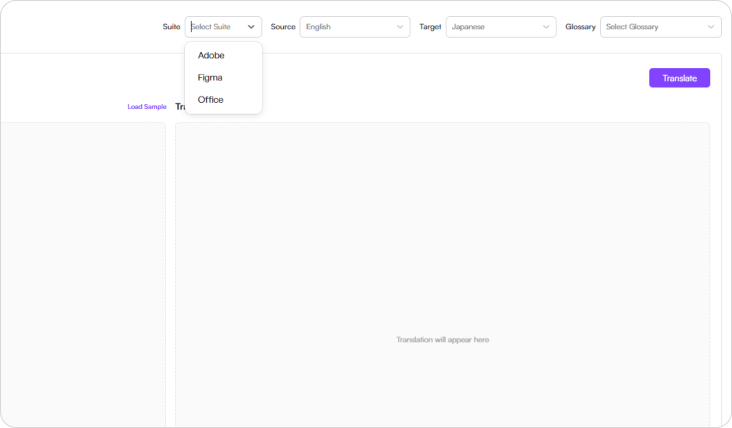
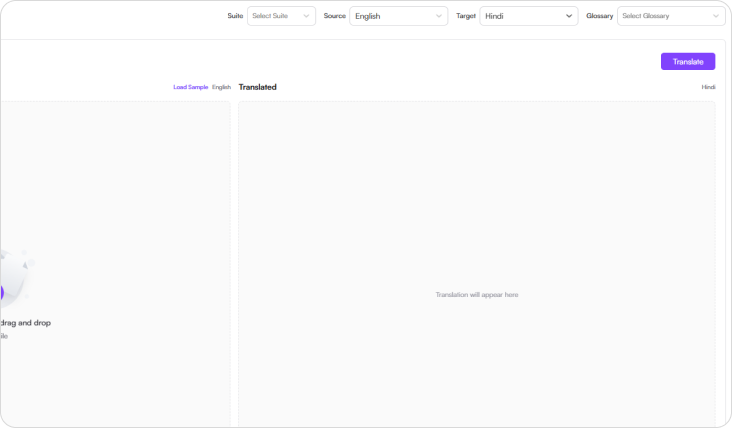
Step 3: Select language
- Choose the source language and one or more target languages.
- The same approved terminology and translation memory apply to every selected version.
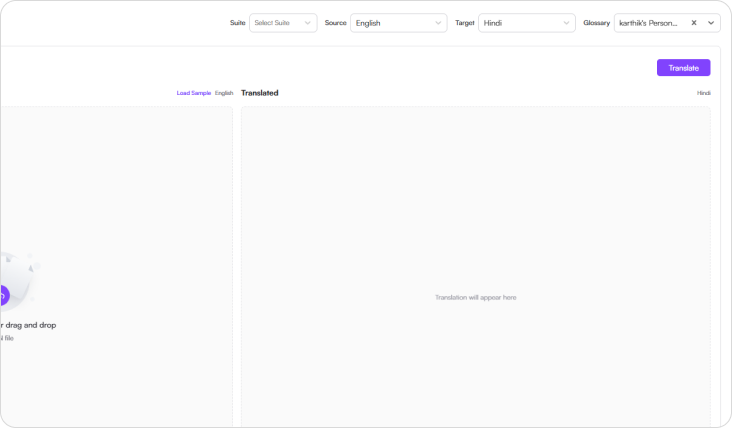
Step 4: Select Glossary
- Choose your translation glossary to maintain consistent terminology across documentation and developer content.
- Glossary-driven translation ensures product terminology, technical terms, and brand language remain consistent across every Markdown file.
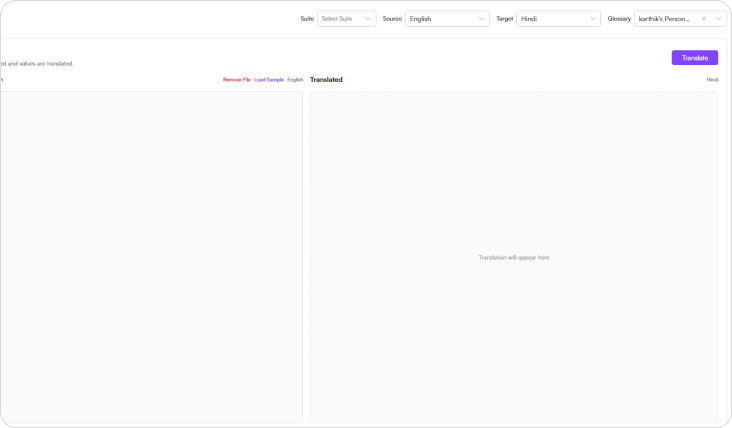
Step 5: Translate
- Click Translate, and Vitra Universe automatically translates the Markdown content while preserving:
- Markdown headings and structure
- Lists and formatting
- Code blocks and syntax
- Hyperlinks and references
- Images and embedded content
- Your translated Markdown file is ready to publish.
Use Cases
Developer Documentation
Translate GitHub README files, API documentation, developer guides, and SDK documentation for global developer communities.
SaaS & Software Documentation
Localize product documentation, feature documentation, and user guides written in Markdown.
Technical Blogs
Translate technical blog posts and developer articles into multiple languages to reach international readers
Open Source Projects
Help open-source communities translate project documentation for global contributors.
Knowledge base & Help center
Translate technical support documentation and Markdown-based help center articles.
Product Documentation
Localize release notes, product updates, and technical documentation used by global customers.
Why Teams Choose Vitra
- Translate Markdown documentation with AI agents, format checks, and human review
- Preserve Markdown syntax, formatting, and structure automatically
- Maintain technical terminology with glossary-driven translation
- Eliminate manual formatting fixes after translation
- Scale global developer documentation and technical content localization
Start Translating Markdown Files Faster
Translate Markdown docs, README files, guides, and blogs into multiple languages while keeping formatting and code syntax.
Launch multilingual developer documentation and global technical content faster without manually rebuilding Markdown files.
Where to go next
Markdown Translation for Documentation and Content is one way into Vitra.ai. Document translation is the capability doing the work behind it.
Browse every connector on the integrations directory.