Flask
Add multilingual capabilities to Flask applications with Vitra by translating web content and UI dynamically while keeping your lightweight app structure intact.
Install Translate.website on a Flask Site
If your site is built with Flask, you can add Translate.website by inserting one snippet into your base HTML template.
No rebuild, no packages, no backend changes — just one safe, reversible change.

Setup for Flask
How It Works
Step 1: Open Your Flask Project
Locate your Flask project folder and open it in your editor (VS Code, PyCharm, etc.).
Most Flask apps have templates here:
- templates/
- templates/base.html (or layout.html)
Step 2: Open Your Base Template
Open the file where your global <head> tag lives:
- templates/base.html
- (or templates/layout.html)
This base template is ideal because it loads on every page.
You should see something like:
Step 3: Paste the Vitra Snippet in the <head>
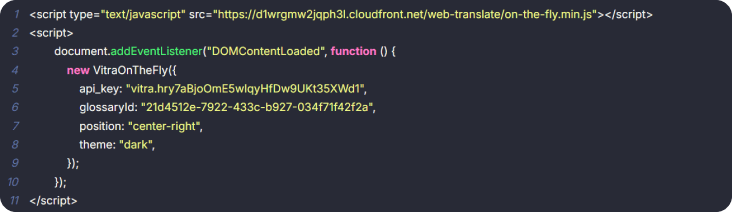
Paste your Vitra / Translate.website snippet inside <head> (preferably near the end of the head).
Example placement:
Step 4: Add a Label (Optional but Recommended)
For easy identification, add a clear comment label above it:
<!-- Translate Website -->
Step 5: Save and Restart Flask
Save the file, then restart your Flask server.
Examples:
flask run
or if you run via python:
python app.py
Now refresh your website — Translate.website should be active.
What Happens After Setup?
- Once live, Translate.website can:
- Translate all Flask-rendered pages
- Keep your layout intact
- Support SEO-ready multilingual experiences (if configured)
- Work without changing your routes or templates
Easy to Remove Anytime
- Want to disable it?
- Just delete the snippet from base.html (or comment it out) and restart Flask.
- No side effects. No dependency cleanup.