←All Tools
01Figma02Adobe Photoshop03Adobe Illustrator04Adobe Indesign05Microsoft Word06Google Sheets07Canva08Youtube09Instagram10WordPress11Shopify12React JS13Next JS14Vue JS15Angular JS16Nuxt JS17Svelte18Drupal19Django20Flask21Salesforce22Ghost CMS23Hubspot CMS24Custom Integration25XML Translation26Dita Maps27XLIFF Translation28Text Translation29Json Translation30HTML Translation31PPT to Videos32GIF Translation33Blog to Video34Markdown Translation35MIF Translation36Adoc Translation37ASC Translation38ASCII Doc Translation39DocBook Translation40PPT-PPTX Translation41POT Translation42POTX Translation43PPTM Translation44POTM Translation45Dita Translation46PDF Translation47PHP Translation48TTX Translation49YAML/YML Translation50PO Translation51Properties Translation52XTG Translation53IOS Strings54Android Strings55RESX Translation
←All Tools
01Figma02Adobe Photoshop03Adobe Illustrator04Adobe Indesign05Microsoft Word06Google Sheets07Canva08Youtube09Instagram10WordPress11Shopify12React JS13Next JS14Vue JS15Angular JS16Nuxt JS17Svelte18Drupal19Django20Flask21Salesforce22Ghost CMS23Hubspot CMS24Custom Integration25XML Translation26Dita Maps27XLIFF Translation28Text Translation29Json Translation30HTML Translation31PPT to Videos32GIF Translation33Blog to Video34Markdown Translation35MIF Translation36Adoc Translation37ASC Translation38ASCII Doc Translation39DocBook Translation40PPT-PPTX Translation41POT Translation42POTX Translation43PPTM Translation44POTM Translation45Dita Translation46PDF Translation47PHP Translation48TTX Translation49YAML/YML Translation50PO Translation51Properties Translation52XTG Translation53IOS Strings54Android Strings55RESX Translation
Flask

Flask

Add multilingual capabilities to Flask applications with Vitra by translating web content and UI dynamically while keeping your lightweight app structure intact.

Connect

Install Translate.website on a Flask Site

If your site is built with Flask, you can add Translate.website by inserting one snippet into your base HTML template.

No rebuild, no packages, no backend changes — just one safe, reversible change.

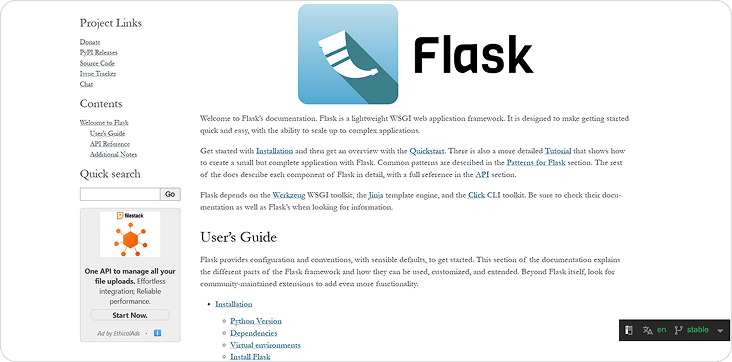
Flask overview

Setup for Flask

    How It Works

    Step 1: Open Your Flask Project

    Locate your Flask project folder and open it in your editor (VS Code, PyCharm, etc.).

    Most Flask apps have templates here:

    • templates/
    • templates/base.html (or layout.html)

    Step 2: Open Your Base Template

    Open the file where your global <head> tag lives:

    • templates/base.html
    • (or templates/layout.html)

    This base template is ideal because it loads on every page.

    You should see something like:

    Step 3: Paste the Vitra Snippet in the <head>

    Paste your Vitra / Translate.website snippet inside <head> (preferably near the end of the head).

    Example placement:
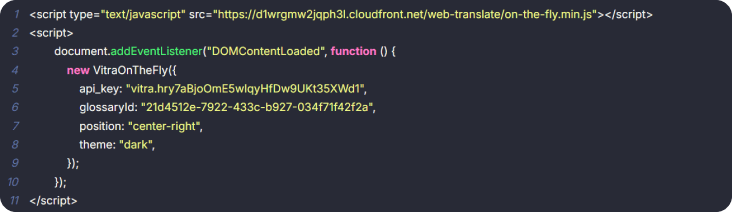
    Paste the Vitra Snippet in the <head>

    Step 4: Add a Label (Optional but Recommended)

    For easy identification, add a clear comment label above it:

    <!-- Translate Website -->

    Step 5: Save and Restart Flask

    Save the file, then restart your Flask server.

    Examples:

    flask run

    or if you run via python:

    python app.py

    Now refresh your website — Translate.website should be active.

    What Happens After Setup?

    • Once live, Translate.website can:
    • Translate all Flask-rendered pages
    • Keep your layout intact
    • Support SEO-ready multilingual experiences (if configured)
    • Work without changing your routes or templates

    Easy to Remove Anytime

    • Want to disable it?
    • Just delete the snippet from base.html (or comment it out) and restart Flask.
    • No side effects. No dependency cleanup.
    Footer

    Power Your Global Content Strategy with AI Translation

    Unlock seamless communication across departments - from Marketing to Ops - with AI-powered translations tailored to your business needs.

    Create, Personalize, and Translate Content 100x Faster with GenAI.