Salesforce
Translate Salesforce pages, dashboards, and customer content with Vitra to enable seamless multilingual experiences across CRM workflows.
Install Translate.website on Salesforce
You don't need custom Apex development, managed packages, or complex multilingual configuration.
Translate.website works via lightweight JavaScript integration — safely added inside your Salesforce site settings.
No code deployment.
No backend modification.
No infrastructure changes.
Running your website on Salesforce Experience Cloud or Salesforce CMS?
How It Works
Step 1: Login to Salesforce Admin
- Visit: https://login.salesforce.com
- Enter your admin credentials
- Click Log In
- Go to Setup
You are now inside the Salesforce admin environment.

Step 2: Navigate to Digital Experiences (Experience Cloud)
- In Setup, search for Digital Experiences
- Click All Sites
- Select the website you want to translate
- Click Builder
You are now inside the Experience Builder.
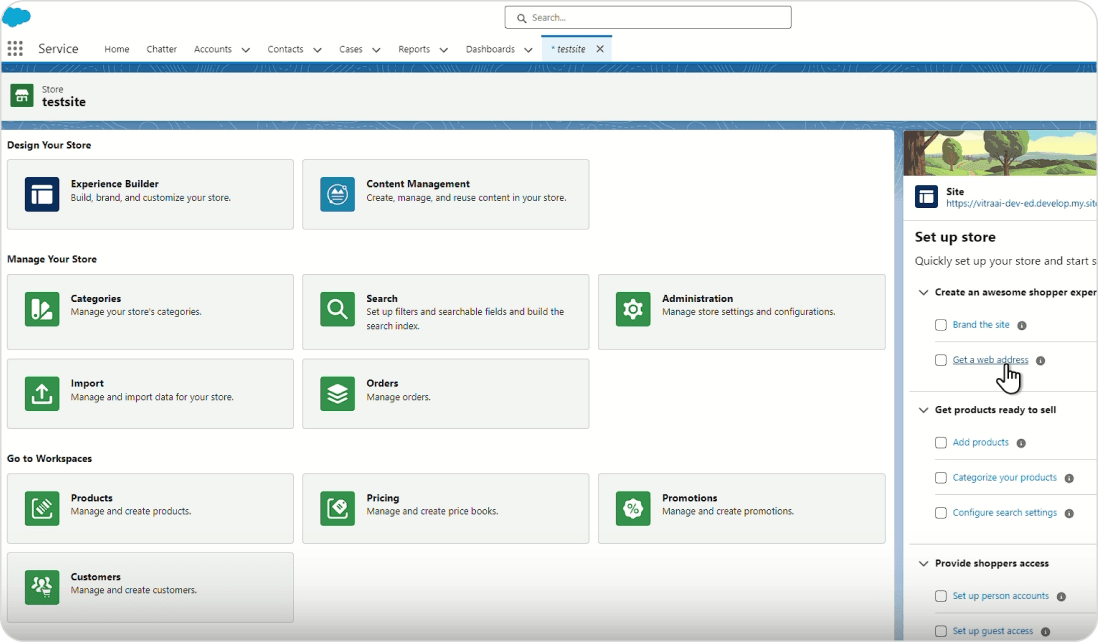
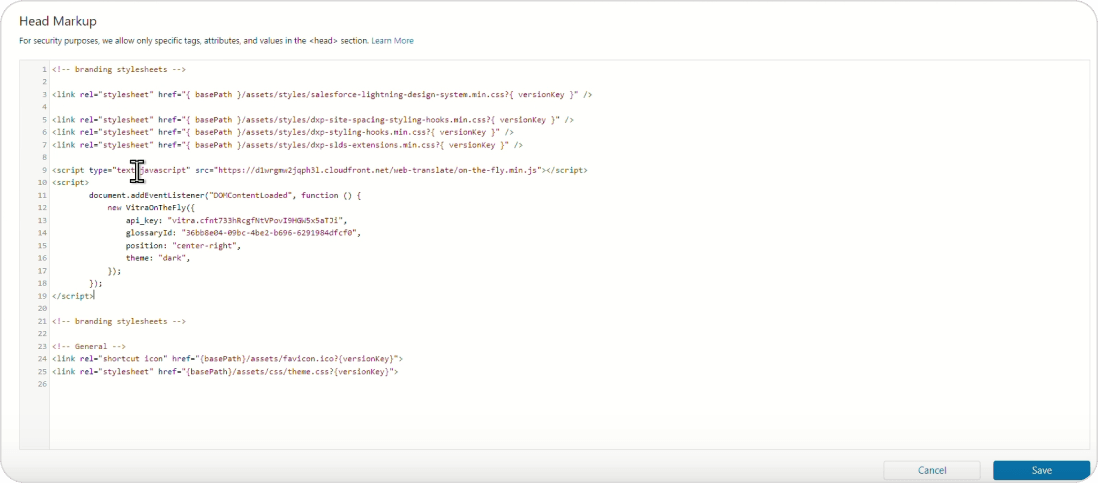
Step 3: Add Translate.website Script
Now we'll inject the script globally.
- In Experience Builder, click Settings
- Go to Advanced
- Locate Head Markup
- Paste your Translate.website script
- Click Publish
Your Salesforce site is now multilingual.
What Happens After Installation?
- Once published:
- Your Salesforce Website Becomes Multilingual:
- Experience Cloud portals
- Knowledge bases
- CMS content
- Landing pages
- Customer dashboards
- Community pages
- SEO-Optimized Language Versions:
- Indexable translated pages
- Geo-targeted routing
- Search engine friendly structure
- No Performance Impact:
- Lightweight script
- No Apex customization
- No Salesforce object duplication
- Works with CDN caching
Why Not Use Salesforce Native Translation?
- Salesforce native multilingual setup:
- Requires language activation
- Needs translation workbench
- Involves manual label translation
- Often requires developer support
- Complicates deployment cycles