Drupal
Make Drupal websites multilingual with Vitra by automatically translating pages, modules, and site content while keeping structure, SEO, and layouts intact.
Add Translate.website to Drupal in Minutes
Running your website on Drupal?
You don’t need custom development or theme edits to make your Drupal site multilingual.
Using Drupal’s module system, you can safely inject the Translate.website script in just a few steps.
Lets walk through it.

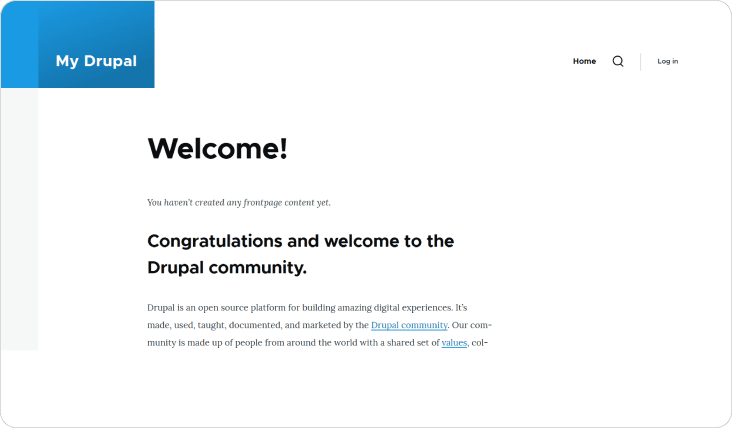
Login to Your Drupal Admin Dashboard
- To begin:
- Open your browser
- Visit: yourwebsite.com/user/login
- Enter your admin credentials
- Click Log-in
- Once logged in, you’ll access the Drupal administrative dashboard.
How It Works
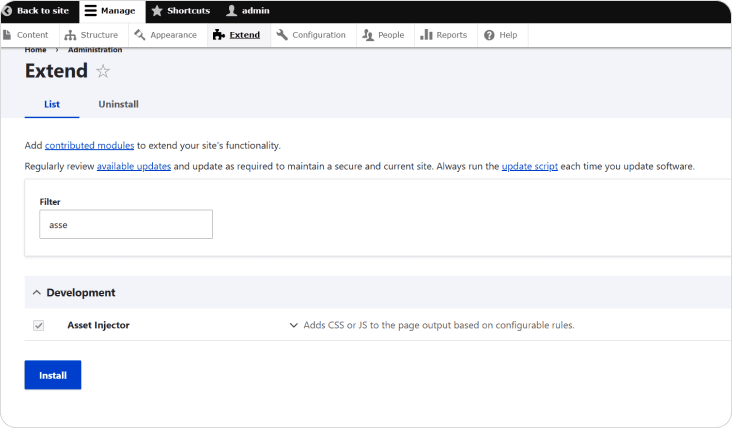
Step 1: Click on “Extend” and Search for Asset Injector
- From the top admin toolbar, click Manage
- Select Extend
- In the search bar, type: Asset Injector
- Confirm that the module is enabled
This ensures the module is active and ready for configuration
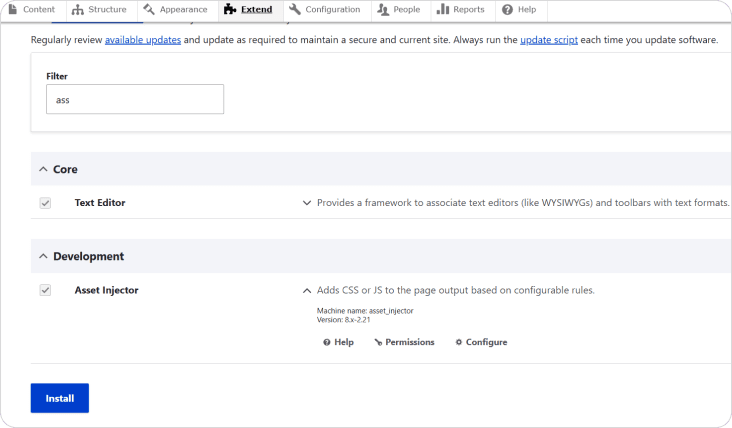
Step 2: Expand Asset Injector and Click “Configure”
- Click the small dropdown arrow (if collapsed)
- Click Configure
This will redirect you to the Asset Injector configuration panel. This section allows you to inject JavaScript or CSS safely into your Drupal website without editing theme files.
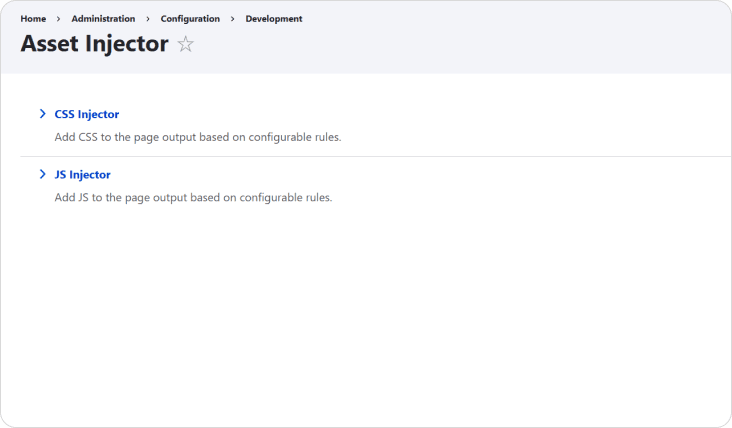
Step 3: Click on “JS Injector”
Select JS Injector
- Inside the Asset Injector configuration screen:
- This section is specifically used for injecting JavaScript globally across your Drupal website. Since Translate.website runs via JavaScript, this is the correct option.
Step 4: Click “Add JS Injector”
- Click the Add JS Injector button
- A new configuration form will appear
This is where you’ll create a global script entry.
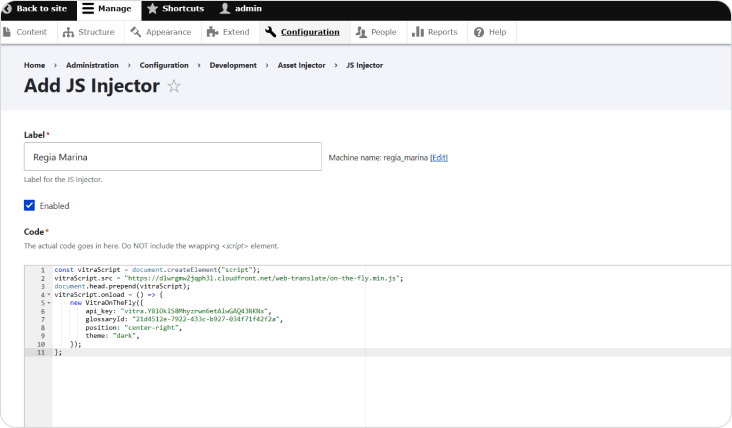
Step 5: Paste the Vitra Snippet
- This is where you’ll create a global script entry.
- In the Label field, enter:
- Paste your Translate.website (Vitra) snippet
- Ensure the script is complete and not truncated
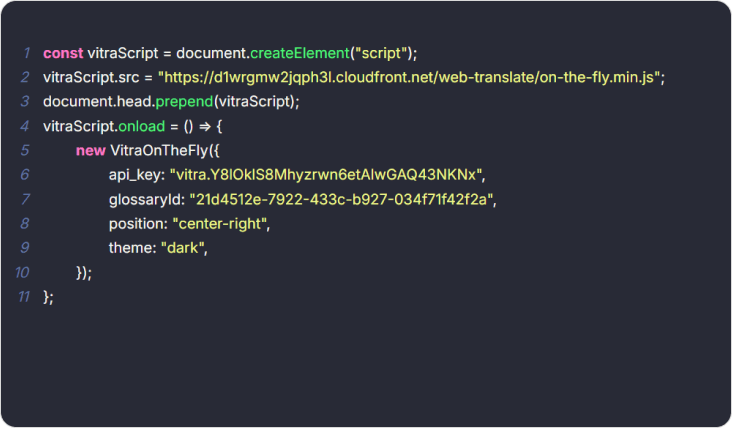
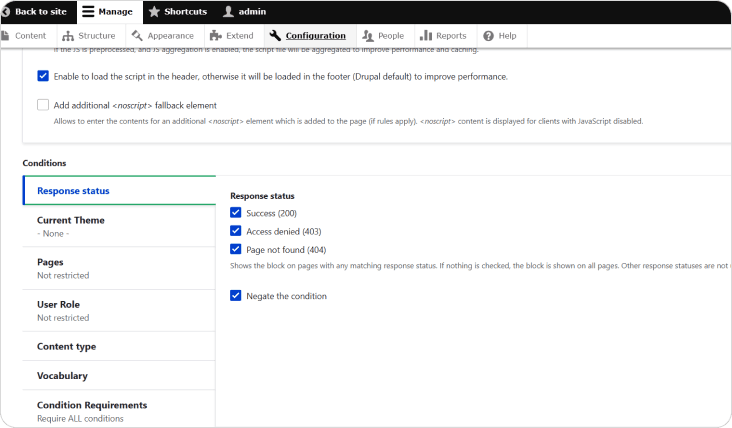
Step 6: Set Conditions (Recommended Configuration)
- Set the injector to load on All Pages
- Do not restrict by content type
- Leave role-based visibility unrestricted (unless needed)
- This ensures the translator works across:
- Nodes
- Views
- Landing pages
- Blog posts
- Menus
- Footer
- Drupal Commerce pages
For full site coverage:
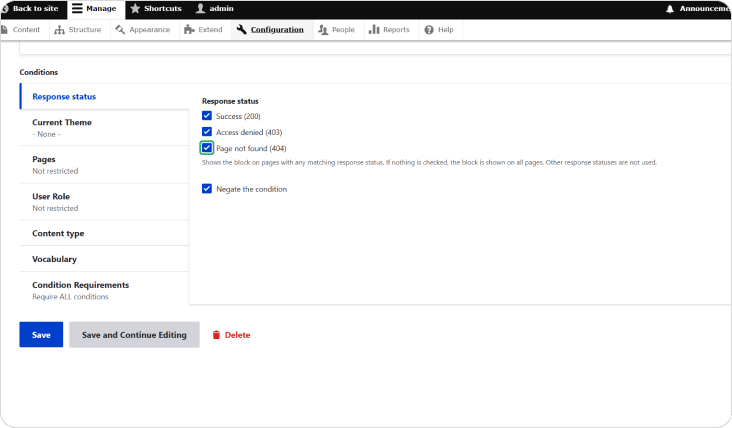
Step 7: Click “Save”
- Once everything is configured:
- Click Save
- Clear Drupal cache (recommended)
- Refresh your website
🚀 What Happens After Saving?
- The script loads globally
- All page content becomes translatable
- Dynamic content is detected
- Layout remains intact
- No theme edits were required
- No content duplication occurs
🔁 Safe & Reversible
- If you need to disable it:
- Go back to JS Injector
- Edit or disable the injector
- Save changes
- No core files are modified.
- No database changes occur.
Translate.website is now active across your entire Drupal site.
Translate.website is now active across your entire Drupal site.